YouTube Shorts Safe Zone Template and Checker
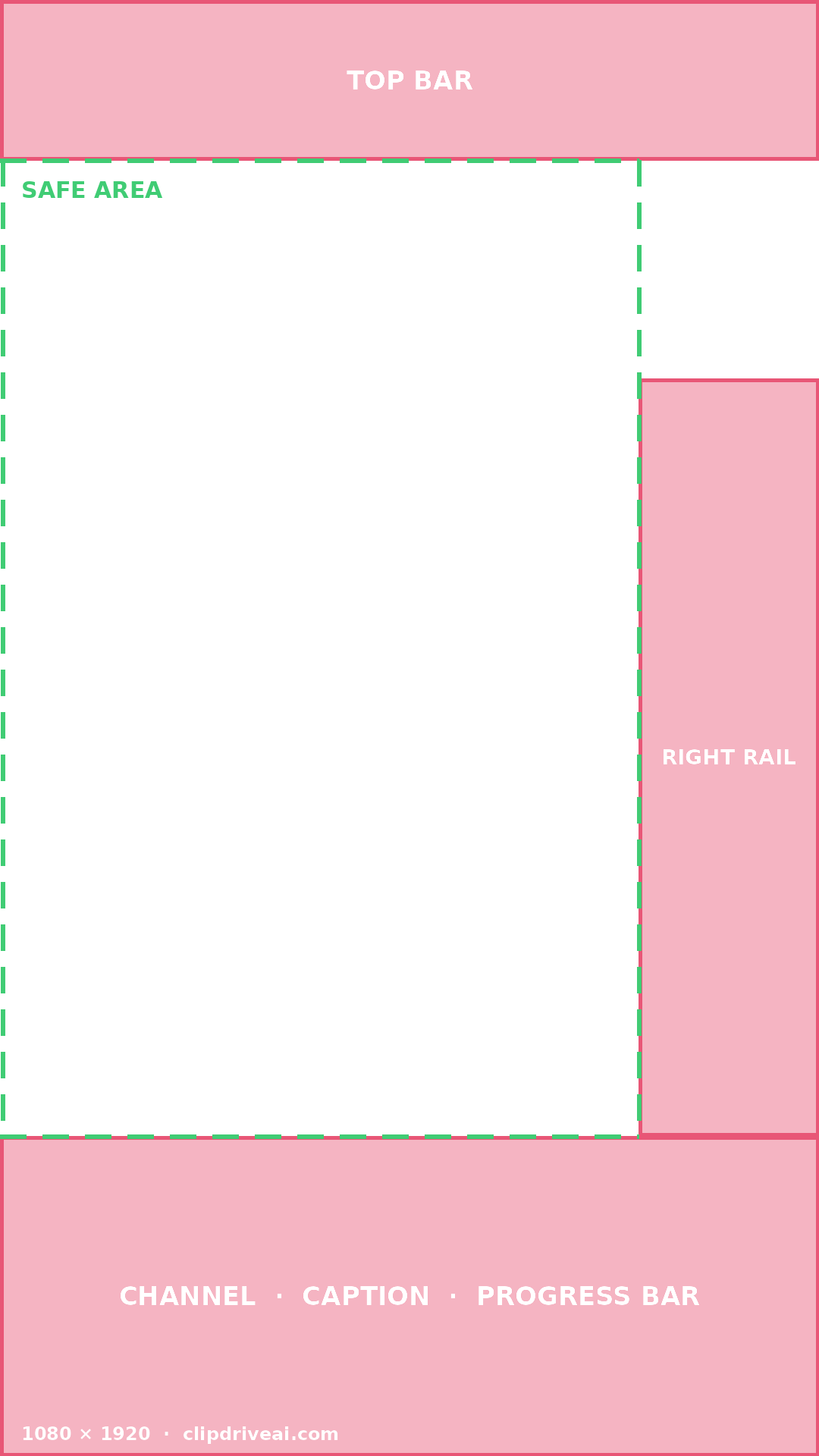
The Shorts interface covers roughly the top 11% of the frame, the bottom 22%, and a 22% column down the right — leaving 842 × 1287 pixels that are reliably visible. Download the overlay to edit against, or drop a frame in below to see exactly what sits on top of it.
Safe zones are approximate and change when the app updates. Leave yourself margin.
Preview is 9:16 — the shape a Short is actually displayed in.
Download the overlay
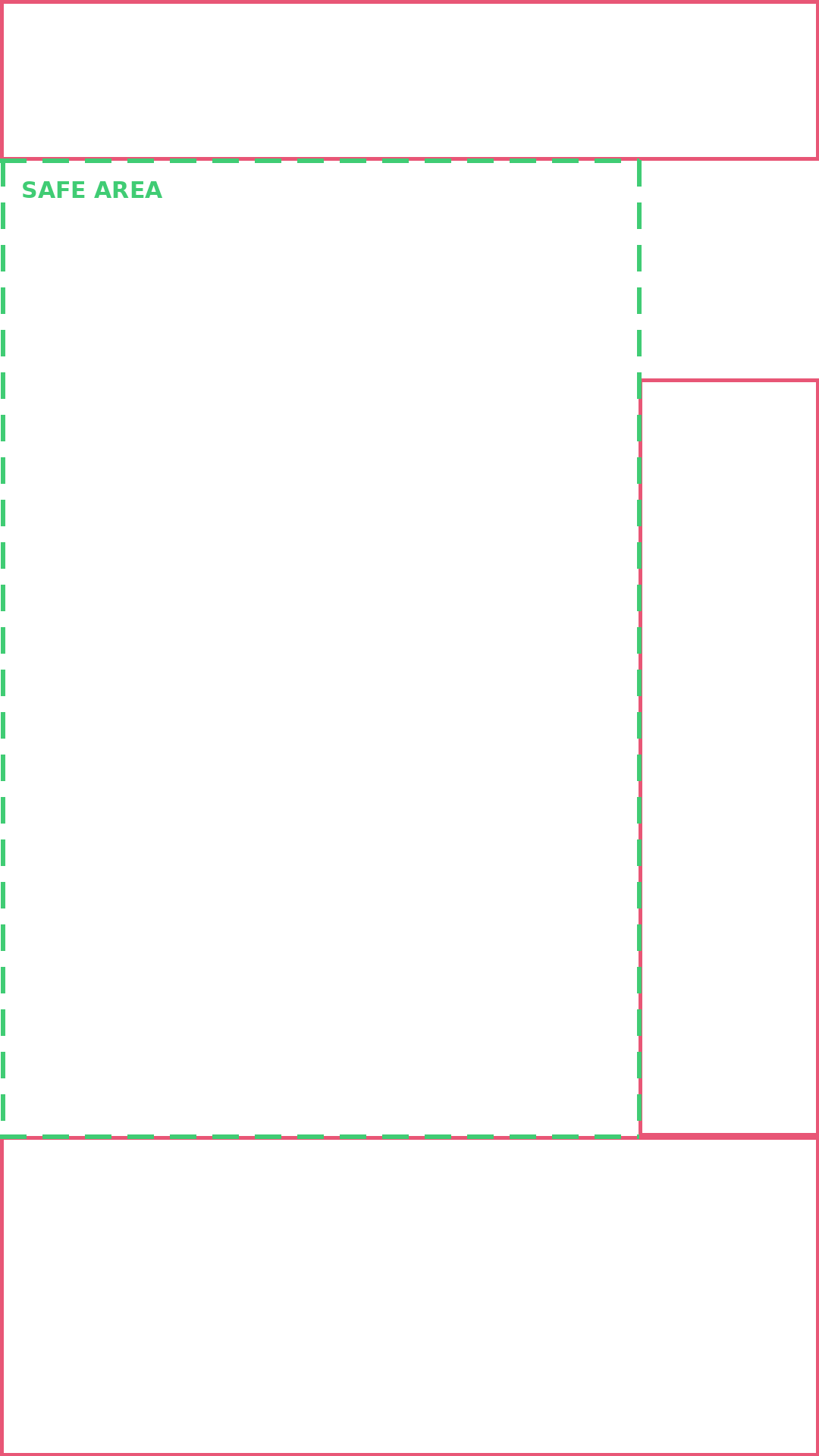
Drop either file on top of your timeline as a reference layer, then delete it before you export. Both are 1080 × 1920 with a transparent background.
Free, no sign-up, no email.
The numbers, if you would rather not download anything
On a 1080 × 1920 frame:
| Area | Covers | Pixels |
|---|---|---|
| Top bar | Back arrow, search, camera | Top 211 px, full width |
| Right rail | Like, comment, share, sound disc | Right 238 px, from 499 px to 1498 px down |
| Bottom block | Channel name, caption, progress bar | Bottom 422 px, full width |
| Safe area | Clear of all three | 842 × 1287, starting at (0, 211) |
These are generous rather than exact, deliberately — see below.
Why there is no exact template, from anyone
Every safe-zone template you will find, including this one, is an approximation. The interface is not a fixed overlay. It moves with:
- Phone size. A 6.1 inch screen and a 6.9 inch screen do not give the interface the same proportion of the frame.
- Caption length. A one-line caption and a three-line caption push the bottom block up by different amounts.
- A music attribution strip, which appears only on some Shorts and adds another row.
- App updates, which move things without warning and have done repeatedly.
Which is why the rule is not “clear the line”. It is “clear the line with room to spare”. Anything that only just fits inside the safe area will be covered on somebody's phone.
The bottom third is where Shorts go wrong
Almost every mistake in this format is the same one: subtitles burned into the bottom of the frame, sitting underneath the channel name, the caption and the progress bar. Move captions to the middle third and the problem disappears entirely — and the middle is where a viewer is looking anyway.
Leave more room than the overlay shows
The interface is not fixed. A tall phone, a short phone, a caption that runs to two lines, a music attribution strip — each of these pushes the obstructed area further into your frame. Anything that only just clears the overlay here will be covered on some devices.
Design the crop, do not accept it
Cropping a 16:9 video to 9:16 without repositioning is what pushes subjects into the corners in the first place. Reframe deliberately: put the subject slightly above centre, keep text in the middle band, and check the result here before you export.
Common questions
What size is the YouTube Shorts safe zone?
On a 1080 × 1920 frame, about 842 × 1287 pixels, starting 211 pixels from the top. That is the area clear of the top bar, the right-hand rail and the bottom caption block.
Where do I put subtitles in a Short?
The middle third. The bottom is where the channel name, caption and progress bar sit, and burned-in subtitles placed there are the single most common mistake in the format. The middle is also where the viewer is already looking.
Are these safe zones exact?
No, and they cannot be. The interface shifts between phone sizes, between Android and iOS, and whenever the app updates. Treat the overlays as a generous margin rather than a precise boundary — if something only just clears them, move it.
Which area causes the most problems?
The bottom. Channel name, caption, the progress bar and often a music strip all sit there, and it is exactly where people put their subtitles. The right-hand rail catches the second most: like, comment, share and the sound disc.
What resolution should a Short be?
1080 by 1920 pixels, 9:16. Anything else gets letterboxed or cropped, and a crop is what pushes your subject into an obstructed area.
Is my image uploaded?
No. The frame is read by your browser and stays on your device. Nothing is sent anywhere.